Wednesday, October 8, 2014

FlexFields

Incentive Compensation Base Transaction Descriptive Flexfield: Explained


Use Base Transaction incentive compensation descriptive flexfield global segments to store transaction attributes that do not exist by default in the CN_TP_TRANSACTIONS_ALL table.
The global segment data types VARCHAR2 and NUMBER have the following customizable attributes available for immediate use.
Data Type
Attributes
VARCHAR2 (240 CHAR)
ATTRIBUTE1 - ATTRIBUTE150
NUMBER
ATTRIBUTE_NUMBER1 -- ATTRIBUTE_NUMBER50
In the Setup and Maintenance work area:
  • Use the Manage Incentive Compensation Descriptive Flexfield task to configure one or more global segments, including associating any relevant value sets or lookups, and deploy the Base Transaction descriptive flexfield.
  • Use the Configure Tables and Columns task to enable the global segments for use in the calculation process.
  • Use the Manage Custom Rule Qualifiers task to enable the global segments for use in the crediting and classification processes.
======================
Why did my flexfield changes not appear in the runtime UI?
The ADF business components or artifacts of a flexfield, which are generated into an metadata services (MDS) repository when the flexfield is deployed, are cached within a user session. You must sign out and sign back in again to view flexfield definition changes reflected in the runtime application user interface page.
A flexfield's deployment status indicates whether the flexfield segments as currently defined in the metadata are available to end users. The flexfield segments seen by end users in the runtime correspond to the flexfield definition that was last deployed successfully.
=================


deployment status indicates how the flexfield metadata definition in the Oracle Fusion Applications database relates to the Application Development Framework (ADF) business components generated into a Metadata Services (MDS) repository.
The following aspects are important in understanding how flexfield deployment status is calculated:
  • Settings that affect flexfield deployment status
  • How deployment status is calculated

Settings That Affect Flexfield Deployment Status

If you have made a change to a flexfield and expect a changed deployment status, be sure you have saved your changes. No settings affect flexfield deployment status.

How Deployment Status Is Calculated

If the flexfield definition has been edited through the Define Flexfields activity task flows, the status is Edited. The latest flexfield metadata definition in the Oracle Fusion application diverges from the latest deployed flexfield definition. Any change, including if a value set used in a flexfield changes, changes the deployment status to Edited. If a flexfield has never been deployed, its status is Edited.


=================
Why did the extensible flexfield context not appear at runtime?
If a deployed extensible flexfield context doesn't appear in the user interface, verify that the context is associated with one of the category's pages defined for the extensible flexfield.
=================
Defining and driving segment values

To populate a flexfield segment with a default value when a row is created, specify a default type of constant or parameter and a default value.
To synchronize a segment's value with another field's value whenever it changes, specify the derivation value to be the flexfield parameter from which to derive the attribute's value. Whenever the parameter value changes, the attribute's value is changed to match. If you derive an attribute from a parameter, consider making the attribute read-only, as values entered by users are lost whenever the parameter value changes.
When defaulting or deriving a default value from a parameter, only those attributes designated by development as parameters are available to be chosen.
Different combinations of making the segments read only or editable in combination with the default or derivation value or both, have different effects.
Initial runtime behavior corresponds to the row for the attribute value being created in the entity table. If the default value is read only, it cannot subsequently be changed through the user interface. If the default value isn't read only, users can modify it. However, if the segment value is a derived value, a user-modified segment value is overwritten when the derivation value changes.
Default Type
Default value specified?
Derivation value specified?
Initial runtime behavior
Runtime behavior after parameter changes
None
No
Yes
No initial segment value
The changed parameter derivation value updates segment value
Constant
Yes
No
Default segment value
N/A
Constant
Yes
Yes
Default segment value
The changed parameter derivation value updates segment value
Parameter
Yes
No
The default segment value is the parameter's default value
N/A
Parameter
Yes
Yes, and same as default value
The default segment value is the parameter's default and derivation value
The changed parameter derivation value updates segment value
Parameter
Yes
Yes, and different from default value
The default segment value is the parameter's default value
The changed parameter default value doesn't update segment value. Only the changed derivation value updates the segment value.
====================


Participant Import

APPLIES TO:

Oracle Fusion Incentive Compensation Cloud Service - Version 11.1.7.0.0 and later
Information in this document applies to any platform.

GOAL

How to import specific users as participants into Incentive Compensation?
 

SOLUTION

You can use the filters to restrict which users will be imported as participants. You can use the following conditions to filter users to be imported as participants:

ROLE :
Text input, with wildcard support. If you provide a value, Oracle Data
Integrator matches it against the Oracle Fusion Resource Manager value
JTF_RS_ROLES_B.ROLE_CODE.
ROLE TYPE:
Text input, without wildcard support. If you provide a value, Oracle Data
Integrator matches it against the value JTF_RS_ROLES_B.ROLE_TYPE.
In order to filter by role you can run a query in BI answers like
select role_code, role_type_code
from jtf_rs_roles_b
order by role_code

The role_code can be found in manage users under Resource Information, there is a dropdown for resource role. In the dropdown you can see a number of resource roles and while you import participant you can use the associated role_code in your filter for participants. Say you assign a resource role of IC Salesrep (this is user defined), you need to find out the role_code for IC_Salesrep in jtf_roles_b in my case its IC_REP and if i wanted to import this user as a participant only i would filter by Resource Role=IC_REP.

PERSON NUMBER:
Text input, without wildcard support. If you provide a value, Oracle
Data Integrator matches it against the Oracle Fusion HCM value
PER_ALL_PEOPLE_F.PERSON_NUMBER

person number can be located by navigating to
Workforce Management > Person Management and query up the user.
 

Tuesday, September 30, 2014

OBIEE - Hiding an column Dynamically

Hello Mohan, 

There is also a way to pseudo-hide a column using a dummy dimension. In most of our models, we include a dimension called "Empty Column". It only has one column, with the name "." (that is a single period). The dimension has the fact table(s) of the model as its logical table source(s), and it is mapped to '.' (a literal string containing a single period). 

We typically use this column when creating Table View reports that have multiple column selectors - a sort of "mini-ad-hoc" report for users. If the report has four column selectors, we make sure that the "." column is included as one of the choices in the selector. This essentially allows the user to "turn off" a column in the report and just aggregate by whatever else is chosen. 

For your requirement, you could use a CASE statement in your report to examine the presentation variable and either show the "real" column or the Empty Column. It doesn't actually "hide" the column, but the only thing displayed is a single period. You could map the column to a single space and then you wouldn't even see the period - just a completely blank column in your report. 

Jeff's solution is more elegant, but this is at least an option.


====================
This may help: 
You can use condition sections to display 1 of 2 reports. The conditional 
section (poorly named Guided navigation section) will filter on the value 
selected and show a specific report A or hide it. Report B will show for a 
different condition.

OBIEE - Changing Columns headers dynamically - Article 2

http://total-bi.com/2011/03/obiee-dynamic-column-headings

OBIEE Dynamic Column Headings

Posted on March 1, 2011 by Paul McGarrick
Filed Under 10.x Answers, Answers, OBIEE 10, OBIEE 11g
A common requirement I come across is to create a report with dynamic column titles. For example a column should be labelled ‘Mar 11′ rather than Revenue and this should change each month with the data.
Easy you would think? Well sadly not as easy at it perhaps should be from an enterprise BI product.
So what are the options?
1. Venkat came up with a clumsy workaround a couple of years back but that involves casting all your columns to char. It never really felt like a proper way of doing it.
2. Use a session variable to dynamically set the column name in the presentation layer of the RPD. E.g.
3. Use a presentation variable as the column name.
This is probably the better of the techniques but it is still far from ideal. Simply edit the column properties and put the name as @{variable_name}{default_value}.
But we still have the problem of how to make this dynamic. Well, we can set a presentation variable using a dashboard prompt so we need to create a prompt and force it to a default value. Note that the prompt will need to be added to the dashboard but can be hidden by setting the CSS style to display:none on the dashboard section.
Let’s hope Oracle make this functionality a bit easier to achieve in a future release!
Bye for now.

OBIEE - Changing Column heading Dynamically - Article 1

1. http://oraclebizint.wordpress.com/2008/01/25/oracle-bi-ee-101332-dynamic-column-headers-using-presentation-variables-sets-and-conditional-formatting/

Oracle BI EE 10.1.3.3/2 – Dynamic Column Headers using Presentation Variables, Sets and Conditional Formatting

Posted by Venkatakrishnan J on January 25, 2008
Yesterday we saw how to dynamically vary the columns in a report based on the column that we choose in a dashboard prompt. But if you had noticed, the column header in that report would have had a constant value. I got this question yesterday via email, whether there is any way we can make this column header dynamic. Well, today we shall see how to go about achieving dynamic column headers. Actually if you go to table or column headings in a table view you would notice that it accepts only static text. One cannot enter presentation variables and make it to convert them to their actual values. So, in order to achieve the dynamic column headers, we start with the same report from where we left off yesterday here. The idea is very straight forward. It consists of the following steps
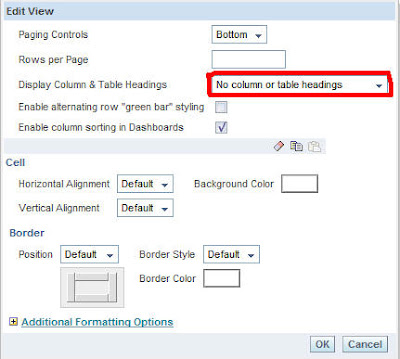
1.   Hide the actual Column and Table Headers.
2.   Cast all the columns to CHAR.
3.   Decide on the name for your static column headers.
4.   Create conditional formatting on the all the columns and make them to display in a specific color whenever data matches the Column Header Names.
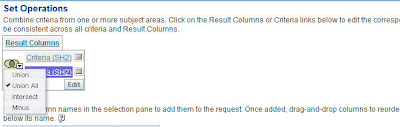
5.   Add a new criteria and combine it with the older one using UNION ALL. The columns in this criteria would contain the Actual Column Header values that you want (dynamic).
6.   Make these values to display at the top of the report.
I know it might be a bit confusing why we are doing certain operations above. We shall go through each of the above in detail. Lets take the same dynamic report that we created yesterday.
1.   Go to the table view properties and hide the actual column and table headers. We are doing this because our plan is to use a data element from the table itself(which we shall generate later using UNION ALL) as the column header instead of the actual column headers.
      
2.   Cast all the numeric columns to char since we would be appending non-numeric column headers which would come from another data set. Now decide on a column header name for all the columns that you have in your report. For example, in our report, one column header name would be dynamic (which would come from the presentation variable @{Geography} and the other Column header would SALES
      
3.   Once you have the column header names decided, now add conditional formatting to all the columns in the report to something like this i.e. whenever SALES1.SALES = ‘SALES’ (the static column header name that we decided earlier) then add a background color of light green. In my case. i have added the below conditional formatting to both the columns.
      
4.   Now that we have added the conditional formatting, next is we need to add the criteria that will add our necessary column header values to the report data. So, use UNION all to combine the new criteria with the older one.
      
Add some dummy columns and in the formula enter the column header values. In my case ‘{@Geography}’ and ‘SALES’. Ensure that you include atleast one column in the formula as shown below.
      
      
5.   The last step is to make the new data that we added to display at the top of the report. So, now add 1 new column to both the criteria and enter 2 in formula tab for the one containing the data and 1 in the formula tab for the one containing the column header values. Sort the results on this column.
      
      
6.   Now save this report. And go to the dashboard. You would have dynamic column headers.
      
      
I know the above procedure is too tedious for achieving a very small functionality. But again, if your users absolutely need it and you dont have any other options just use this approach. Just remember this works only for table views.